Uninstalling the PMS
It is mandatory to provide the merchant with an option to uninstall the integration.
Introduction
To uninstall a Property Management System (PMS) integration from Lightspeed Restaurant POS K-Series, the merchant needs to disconnect the PMS provider from their K-Series Back Office before it can be deleted via API.
Part 1 - Disconnecting the PMS from the Payment Method
The merchant should be directed to follow these steps:
Step 1 - Select the Payment Type
-
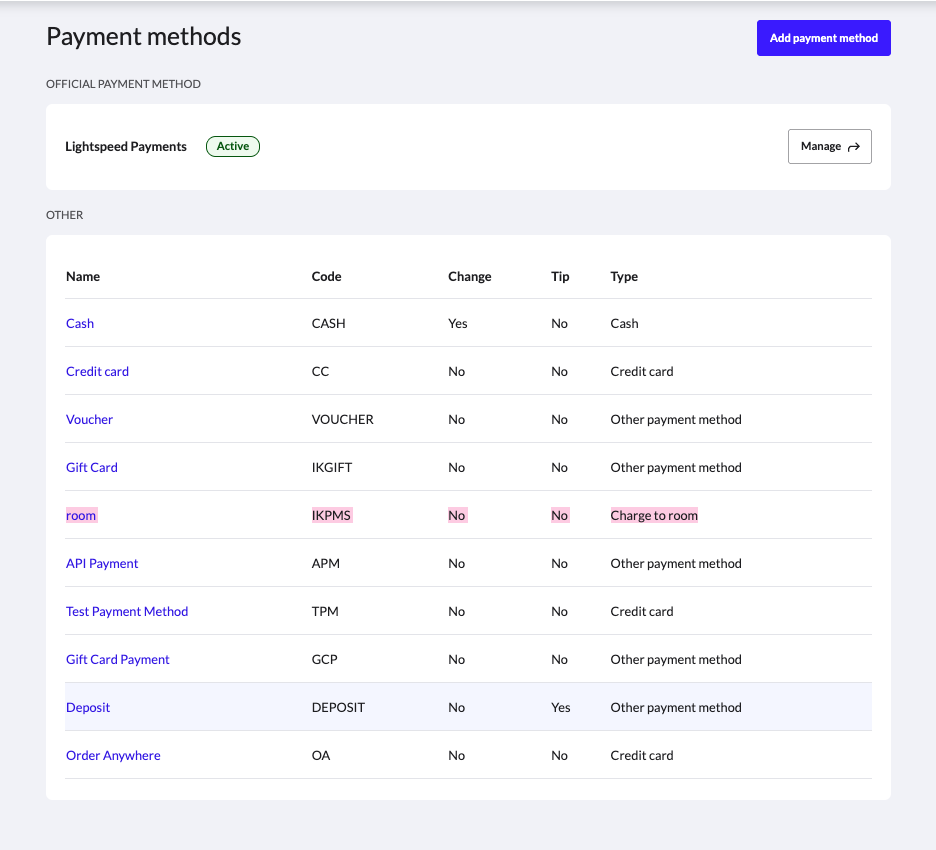
Log in to the Lightspeed K-Series Back Office and navigate to Payment → Payment Methods.
-
Find and select the payment type linked to your PMS connection, for example, "Room" linked with "Charge to Room" payment method type.
Step 2 - Change the PMS Server
- In the payment method settings, find the PMS Server field.
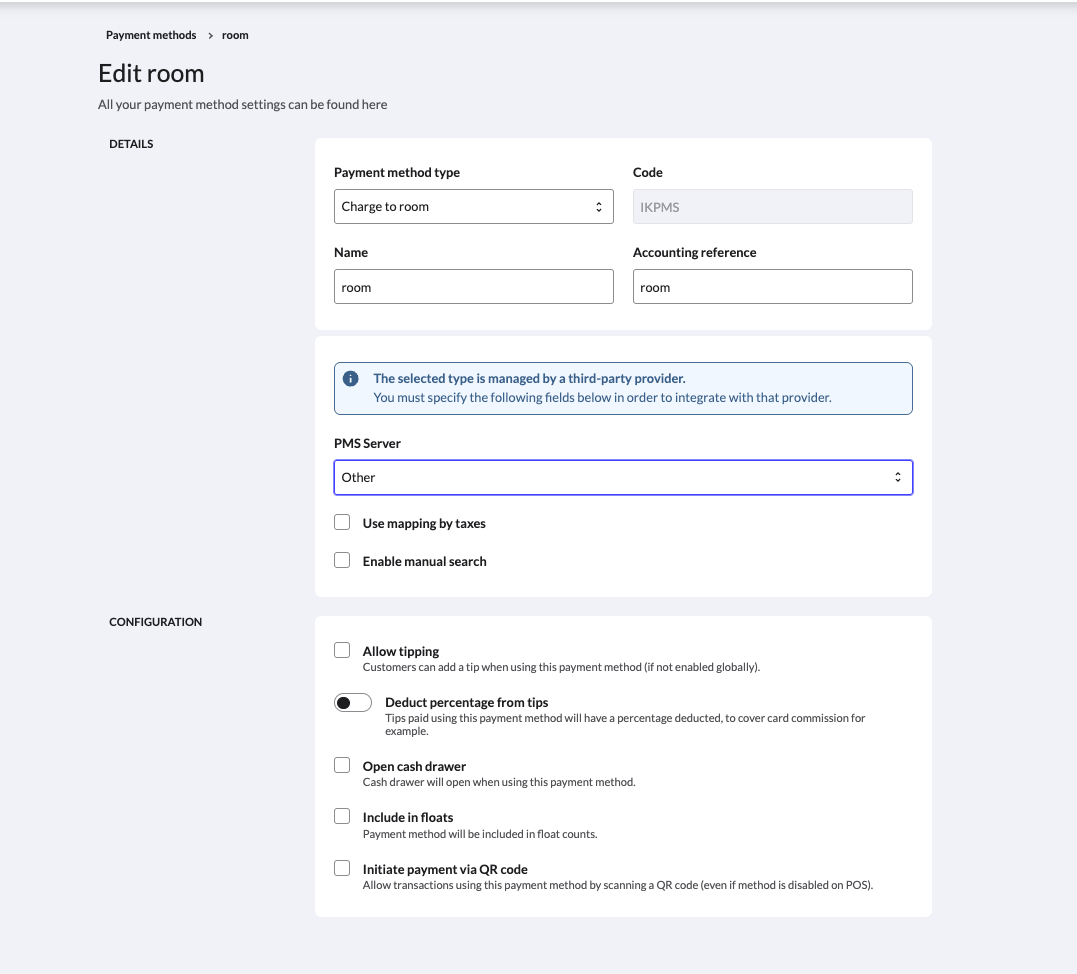
- Change the PMS Server from the current integration ("Other") to another option from the list and save your changes.
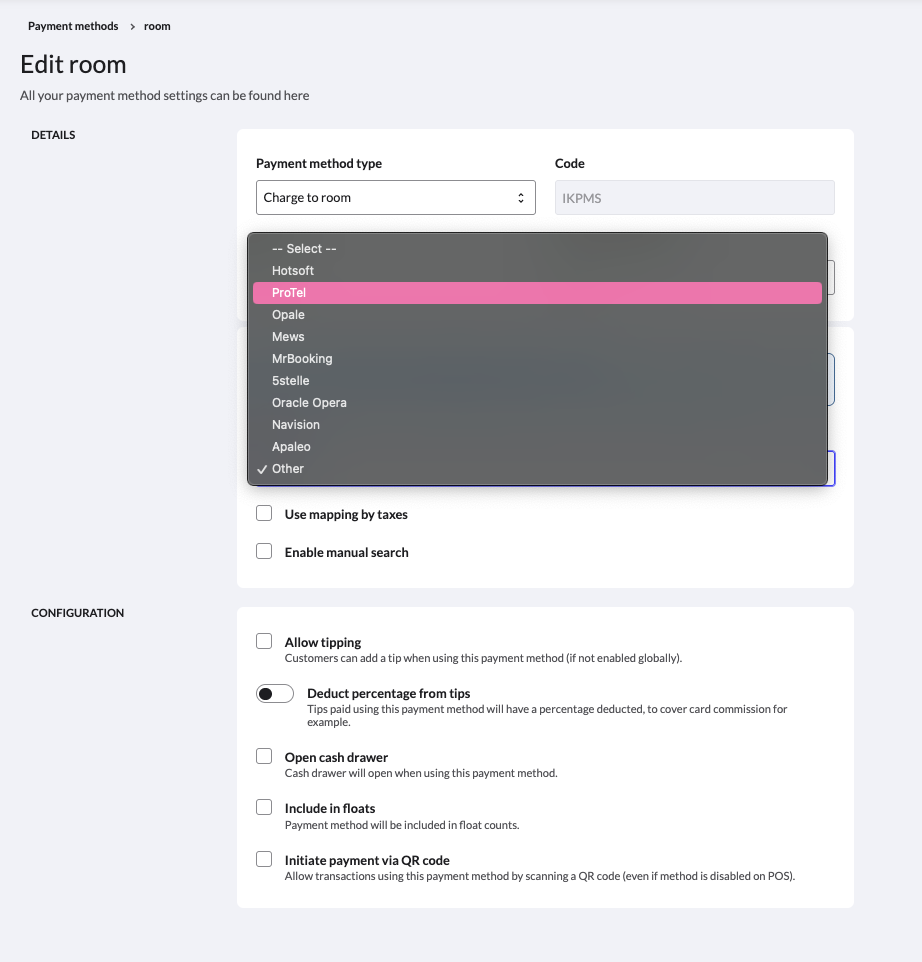
This disconnects the payment type from the PMS integration, allowing the PMS provider to be deleted via API.
Part 2 - Deleting the PMS Provider via API
Once the PMS provider has been disconnected from the payment method, you can proceed to delete the PMS provider using the Delete a PMS Provider endpoint.
Ideally, you should provide a button or link in your PMS integration interface that triggers this request.
Example Request:
curl \
 --request DELETE 'https://api.trial.lsk.lightspeed.app/pms/v1/providers/{PMS-PROVIDER-ID}' \
 --header "Authorization: Bearer $ACCESS_TOKEN"
Replace {PMS-PROVIDER-ID} with the actual ID of the PMS provider you wish to delete.
If successful, the API will return a 200 OK response, with the PMS provider ID in the body. This indicates that the PMS provider has been successfully deleted.
Error Handling
If Part 1 has not been successfully completed, the API will return a 500 error.
Example Error Response:
{
    "status": "INTERNAL_SERVER_ERROR",
    "timestamp": "2025-11-28T20:18:14.267179563",
    "message": "Internal RPC API error",
    "apiSubExceptions": []
}
If this happens, an error message should be displayed to the user, prompting them to disconnect the PMS from the payment method in the Back Office before attempting to delete the PMS provider.